Managing Products (SKUs)
Your Product Catalog is the heart of WMS Biz. Every physical item you sell, purchase, or store must have a corresponding Product record.
Understanding the Fields
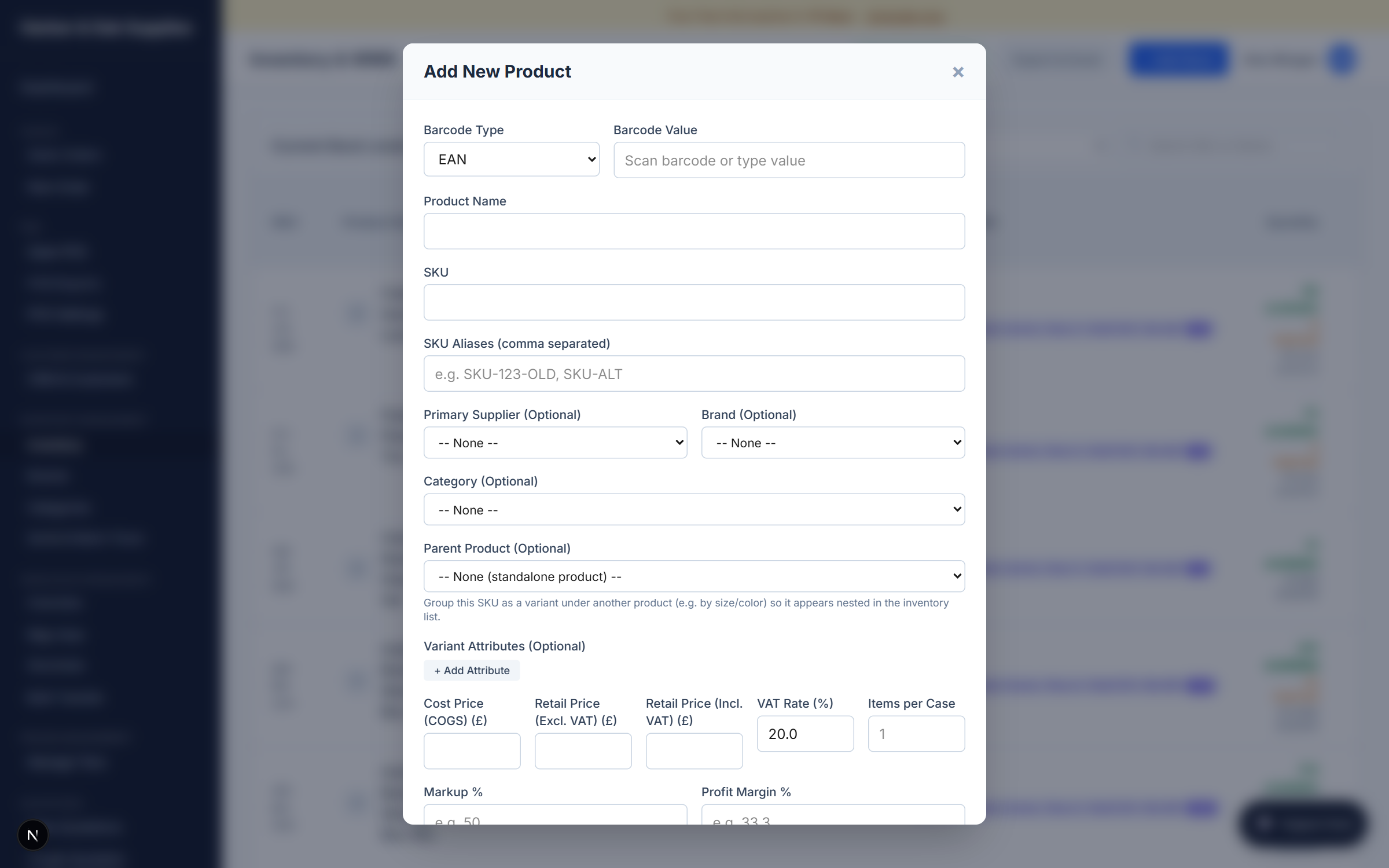
When creating a new Product, you will encounter several key identifiers:
- SKU (Stock Keeping Unit): The unique alphanumeric code used by your internal team to identify the product (e.g.,
LAPTOP-PRO-15). - Barcode & Barcode Type: The product's identification barcode. You can choose from three barcode types:
- EAN / UPC: Manufacturer-provided barcode values scanned at receiving or fulfillment.
- Self Assigned: Internal barcodes generated by WMS Biz for products lacking standard manufacturer codes.
- Internal Barcode Generator: When choosing Self Assigned as the barcode type, click the Gen button to automatically generate a unique internal barcode string starting with
INT-. - QR Code Label Printing: For Self Assigned items, a QR code preview is shown on the product page. You can click the Print QR Label button to open a dedicated print-formatted pop-up window to output adhesive thermal tags.
- Base Price: The standard selling price shown to public/retail customers.
- Cost Price: The supplier cost (used as a fallback if dynamic COGS calculation isn't available).
- Items per Case: The number of single units contained within a shipping carton or box (e.g., 24 per case). This enables visual case counts and progress tracking in picking workflows.
Stock Levels & Thresholds
WMS Biz is a perpetual inventory system. You cannot manually edit the total "Quantity on Hand" field directly on a product record.
Instead, stock levels are driven entirely by Stock Movements (e.g., Receiving a Purchase Order, Fulfilling a Sales Order, or executing an Inventory Adjustment).
Unlimited / Untracked Inventory
For products that do not require physical tracking (such as services, digital goods, or infinite stock items), you can toggle Unlimited Inventory (Untracked) on the product creation/edit form:
- Availability: This option is only available when the product's Tracking Type is set to NONE.
- Behavior: When enabled, the system bypasses standard stock level checks and deductions. The product will always show as available with unlimited/infinite stock, both in the back-office and on Point of Sale (POS) register terminals.
Low Stock Alerts
You can define a Low Stock Threshold on every product. If the available quantity drops below this number, the product will be flagged on the Procurement Dashboard, alerting your purchasing team to raise a new Purchase Order with the supplier.
Product Categories & Brands
For reporting and filtering purposes, we highly recommend assigning your products to Categories and Brands. This allows your sales team to quickly filter the catalog when building manual quotes.
Batch, Serial, & Expiry Tracking
To enable granular unit tracking for high-value goods, quality audits, or perishables, you can configure tracking options when creating or editing an SKU:
- Tracking Type:
- NONE: Standard count-based tracking (default).
- SERIAL: Assigns a unique identifier (Serial Number) to each individual unit of stock. Serial-tracked items are restricted to a quantity of
1per unit record. - BATCH: Groups items into manufacturing batches or lots. Allows multiple quantities under a single batch number.
- Expiry Date:
- Enabling Has Expiry prompts operators to record an expiration date during intake and displays it on the product records.
Tracking Indicators & Location Display
- Tracking Column: The main Inventory Catalog grid includes a dedicated Tracking column that tags products with quick-reference badges:
SERIAL NO,BATCH NO, and/orEXP DATE. This makes it simple to see which items have tracking enabled at a glance. - Location Deduplication: When viewing an SKU that is stocked across multiple warehouse bins, the location display is deduplicated so that each unique physical location lists exactly once per SKU, rather than generating redundant duplicate rows. For example, if a single SKU is present in 2 locations, it will display precisely 2 clean rows.
Serial & Batch Control Tab
When viewing a product's details in the inventory catalog, click on the Serial & Batch Control tab (available for any product with serial, batch, or expiry tracking enabled) to manage unit-level attributes.
Under this tab, you can view:
- The associated SKU and product details.
- The precise Warehouse Bin locations for all units.
- Assigned Serial Numbers or Batch Numbers.
- Expiry Dates associated with each batch or serial-tracked item.
You can perform the following administrative adjustments directly within this control grid:
- Edit Details: Allows you to correct a serial number string, update a batch code, or modify an expiration date with transaction safety.
- Adjust Qty (Batch-only): Overwrite the system count for a specific batch/bin location and automatically log a stock audit adjustment.
- Delete: Permanently delete a specific unit from stock (e.g., if damaged or lost) and log a negative
ADJUSTMENTmovement.